Review and approve a specification
Every specification in Kstonebase carries a status that tells your team — and your agents — how much to trust it. This guide walks the full review loop: create a draft, request a review, and approve it.
Start from a draft
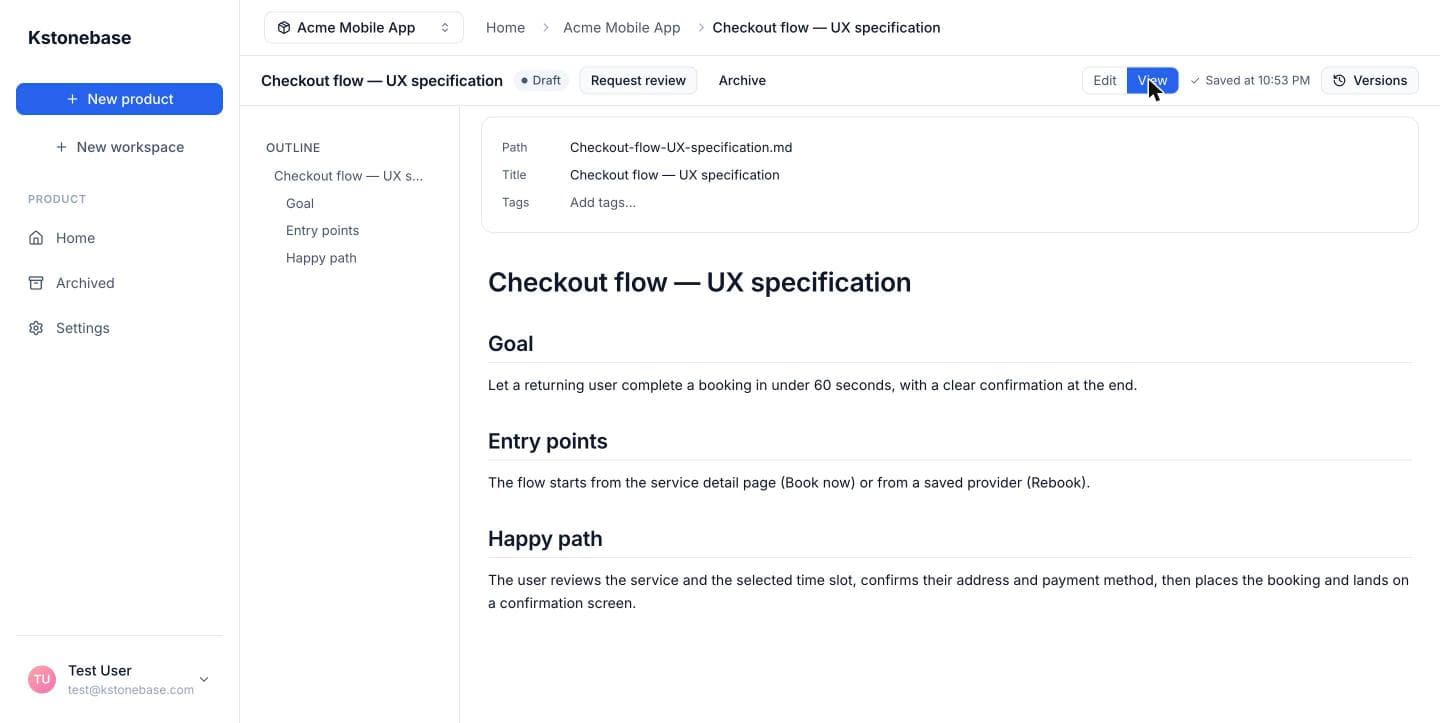
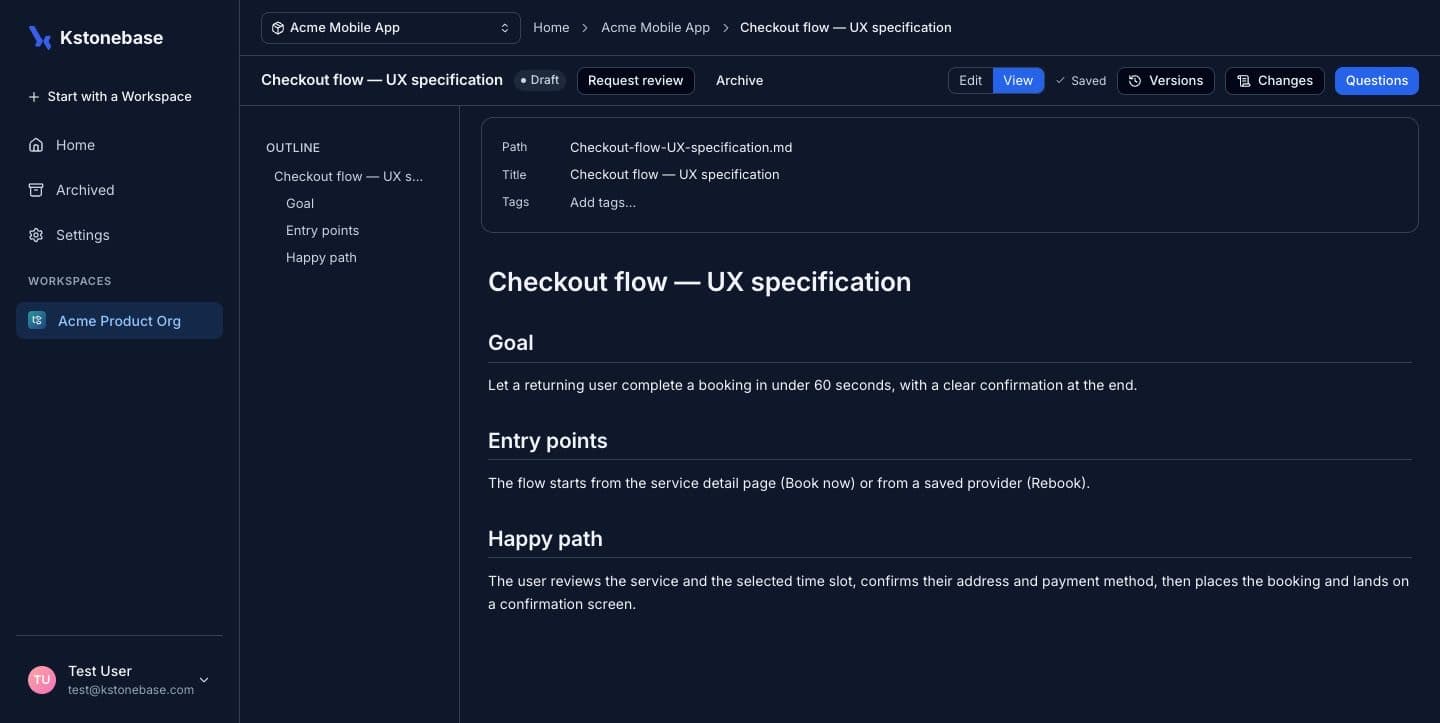
A new or freshly edited specification sits in Draft. Drafts are editable and are not yet treated as authoritative.
Make your edits
Edit the document in the Markdown editor. Only Drafts can be edited — this lock is what keeps Reviewed content stable.
Request a review
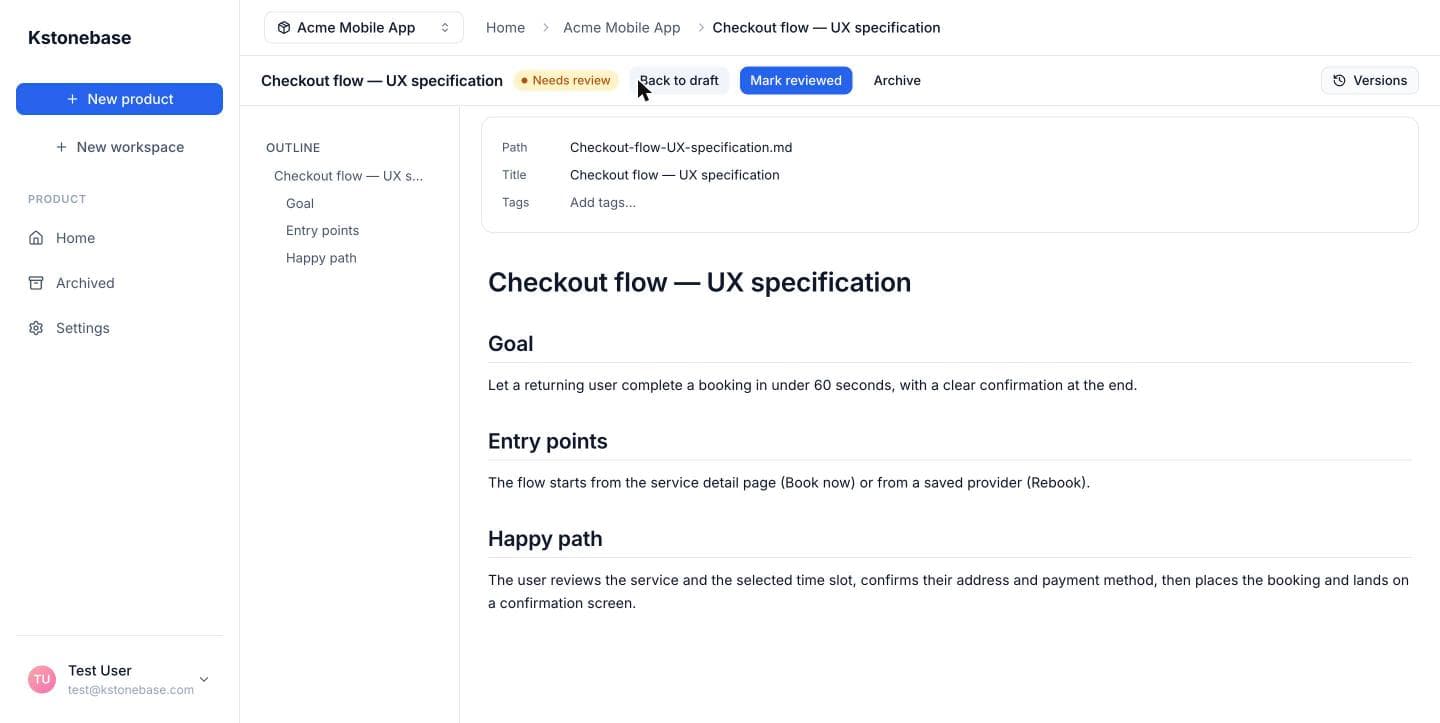
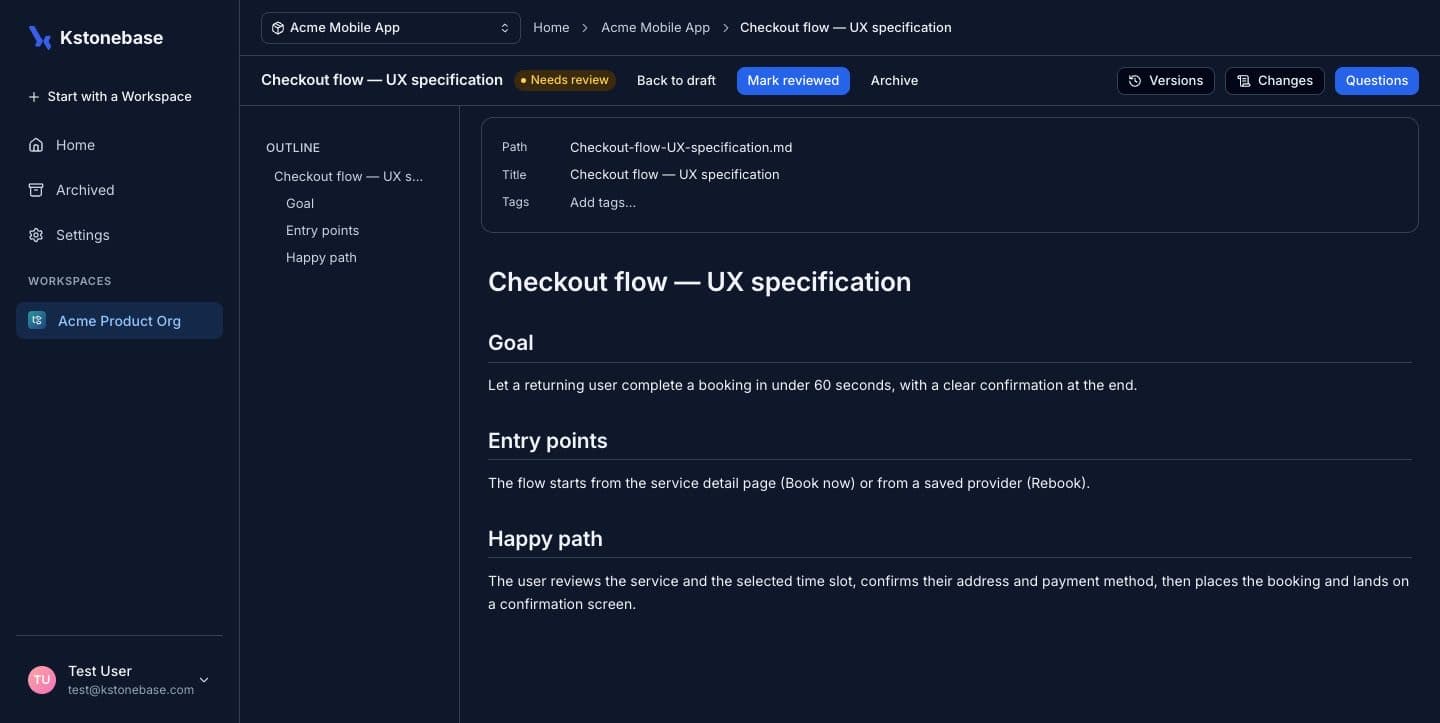
When the draft is ready, click Request review. The status flips to Needs review and a reviewer can now approve it from the document header.
Approve the review
A reviewer opens the document and clicks Mark reviewed, then confirms. Approval is a deliberate human action — Kstonebase never marks a spec reviewed for you.
Trust the Reviewed state
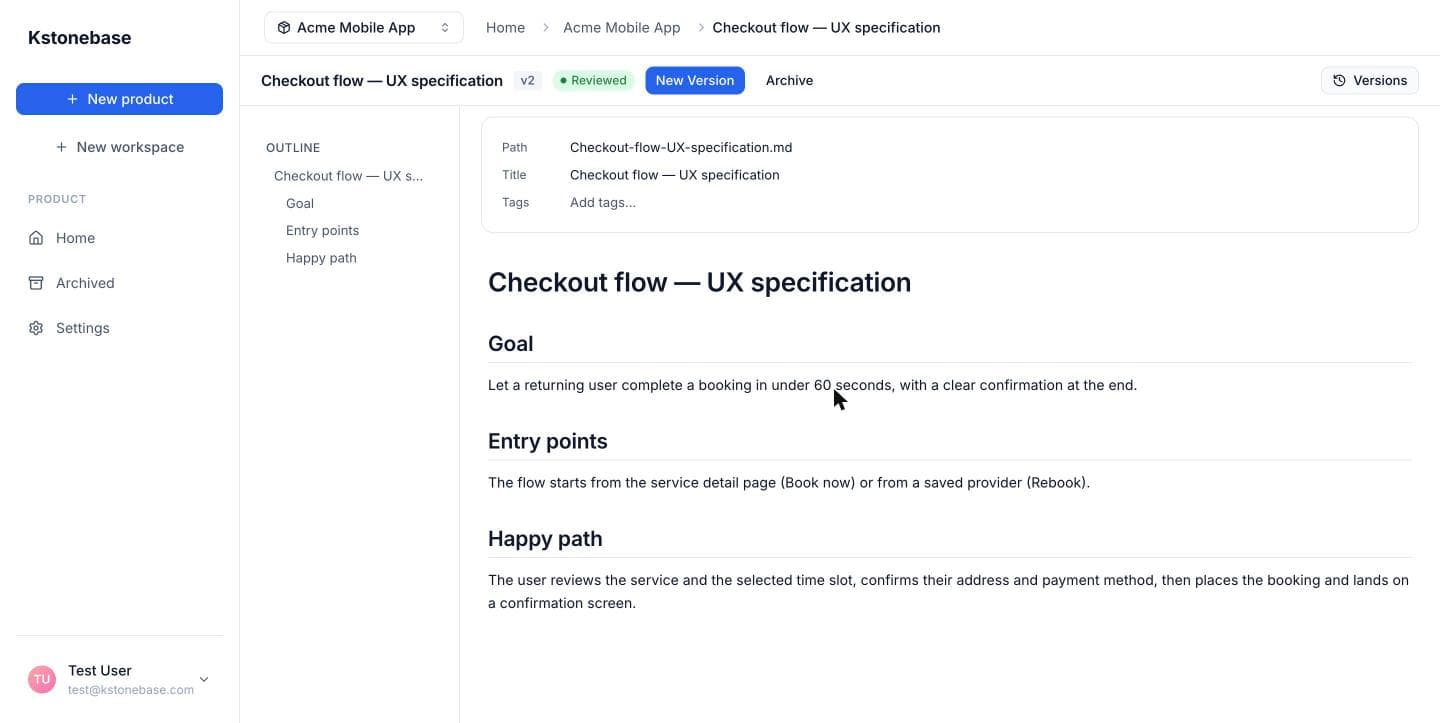
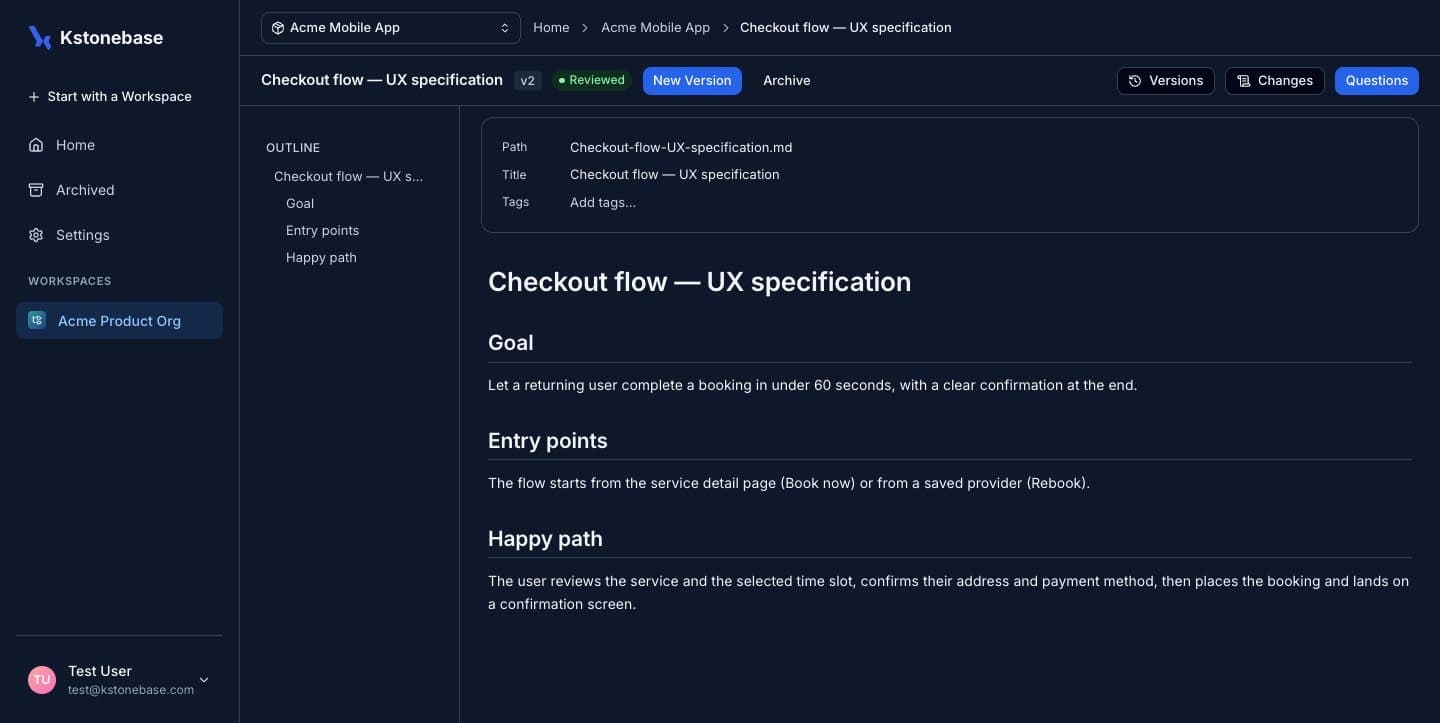
The status becomes Reviewed and the approved-version counter ticks up. Reviewed specs are locked from edits and surface to your agents as authoritative. To change one, open a new version — which returns it to Draft and restarts the loop.