Connect an AI agent over MCP
Kstonebase speaks the Model Context Protocol (MCP), so your AI agents can read and update your specifications directly. This guide connects an agent in the two supported ways.
Open developer settings
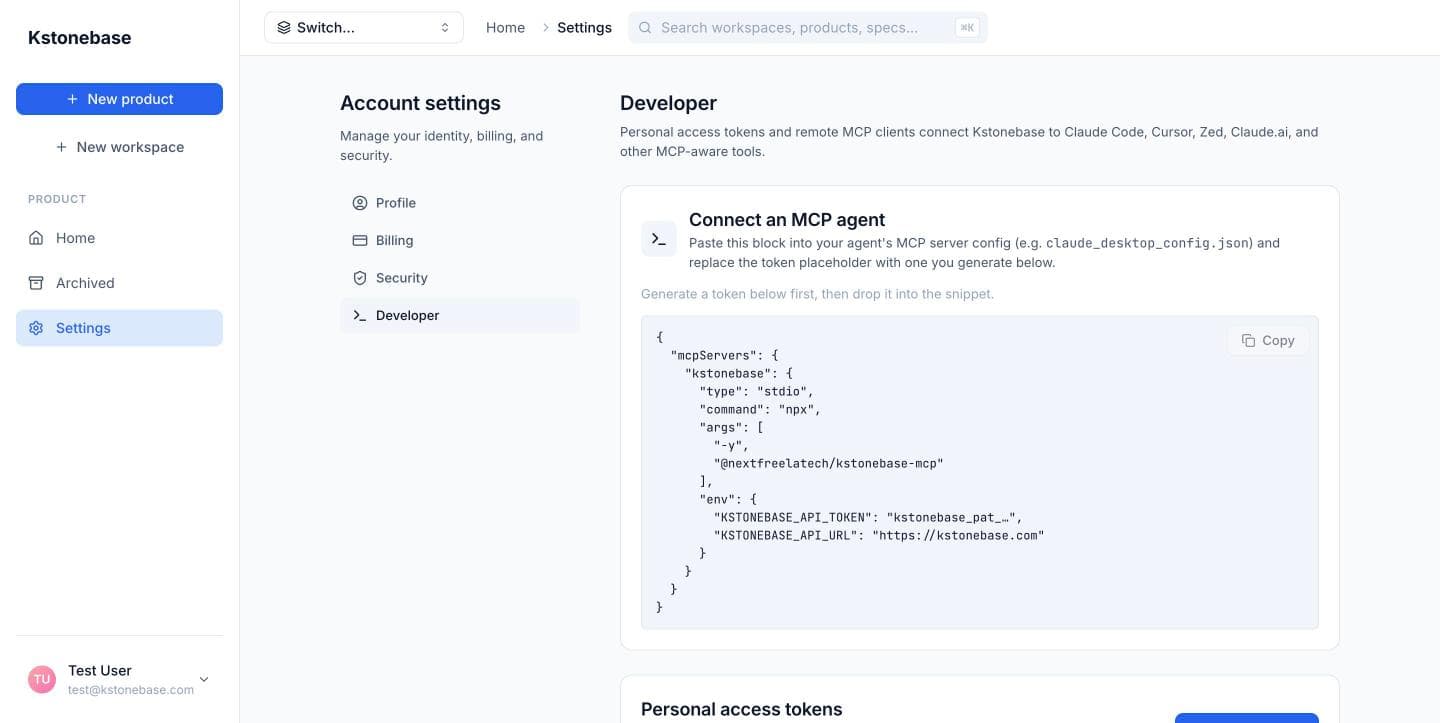
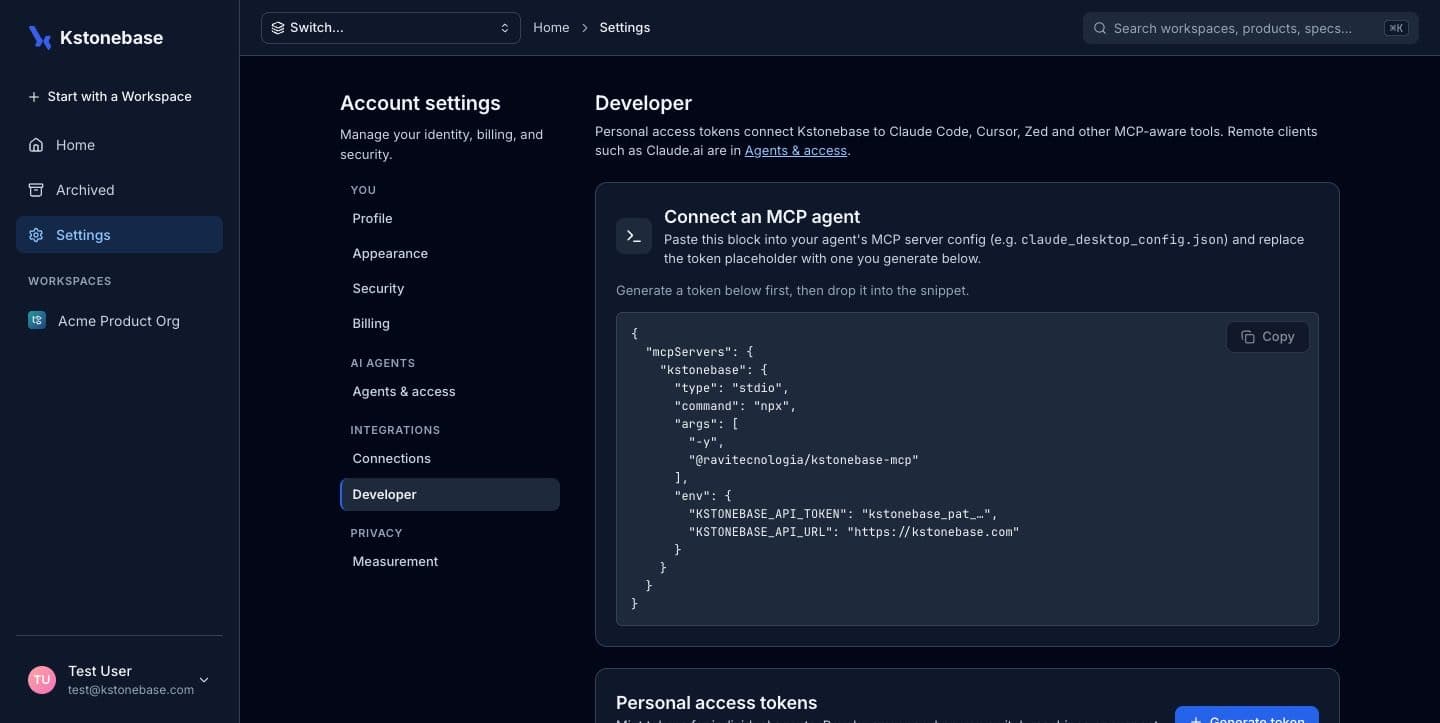
Go to Settings → Developer. This is where you manage MCP access — a ready-to-paste agent config, personal access tokens, and remote MCP clients.
Add Kstonebase as a remote connector
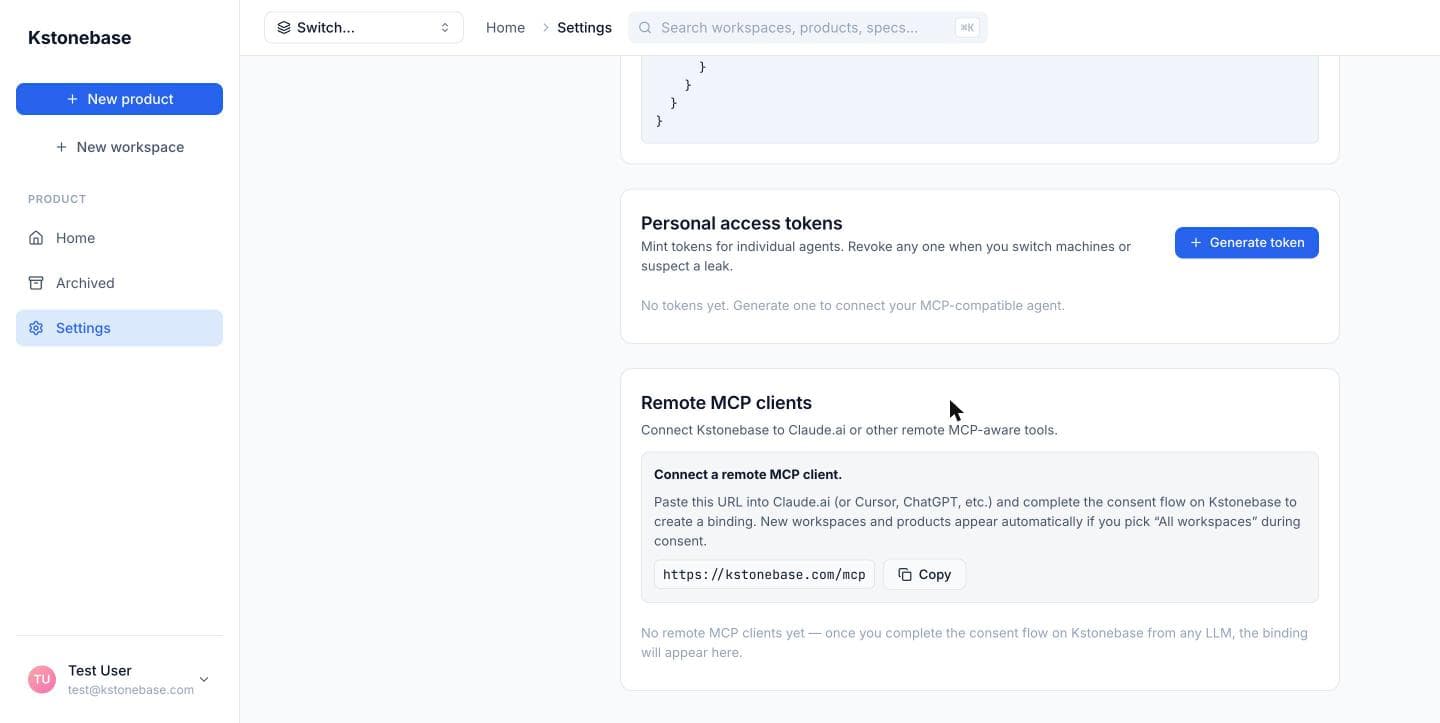
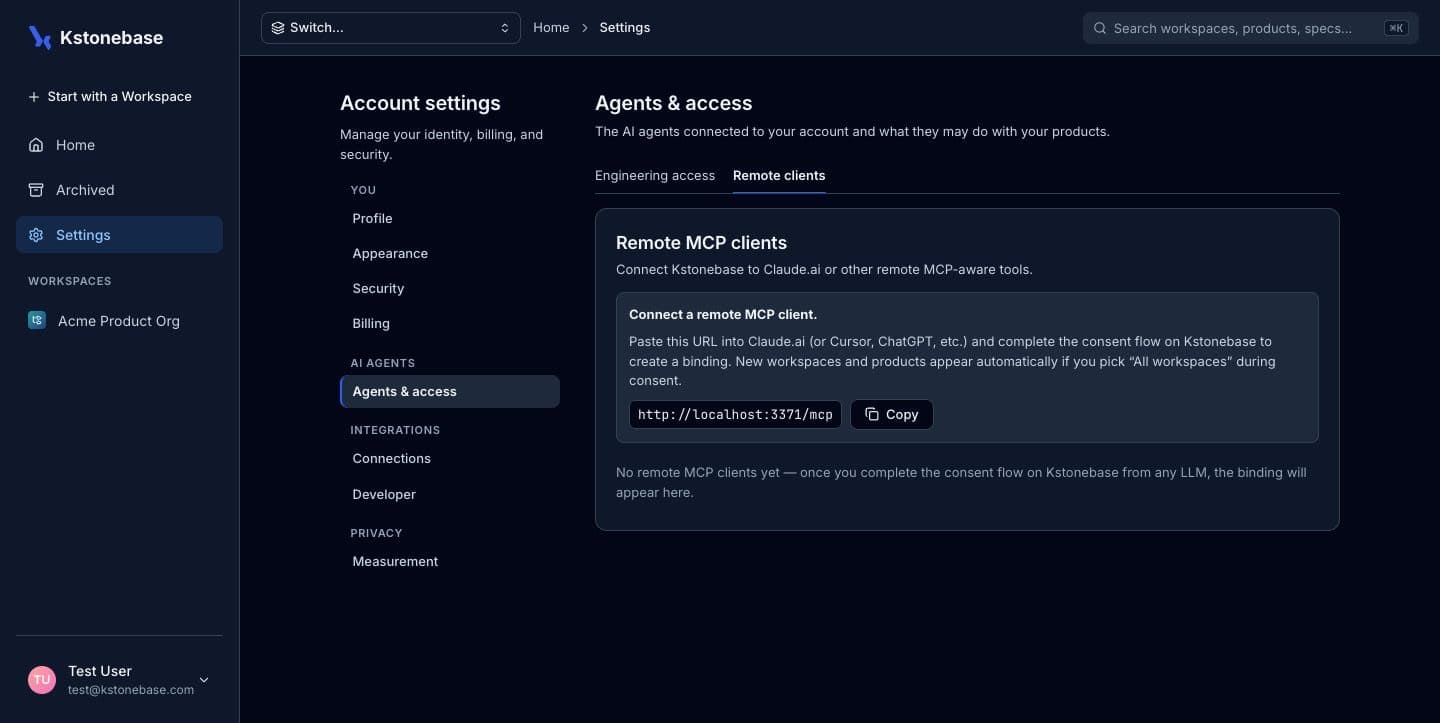
For Claude.ai (or Cursor, ChatGPT, etc.), paste the remote MCP client URL into the tool and complete the consent flow on Kstonebase. New workspaces and products appear automatically if you pick “All workspaces” during consent.
Or create a personal access token
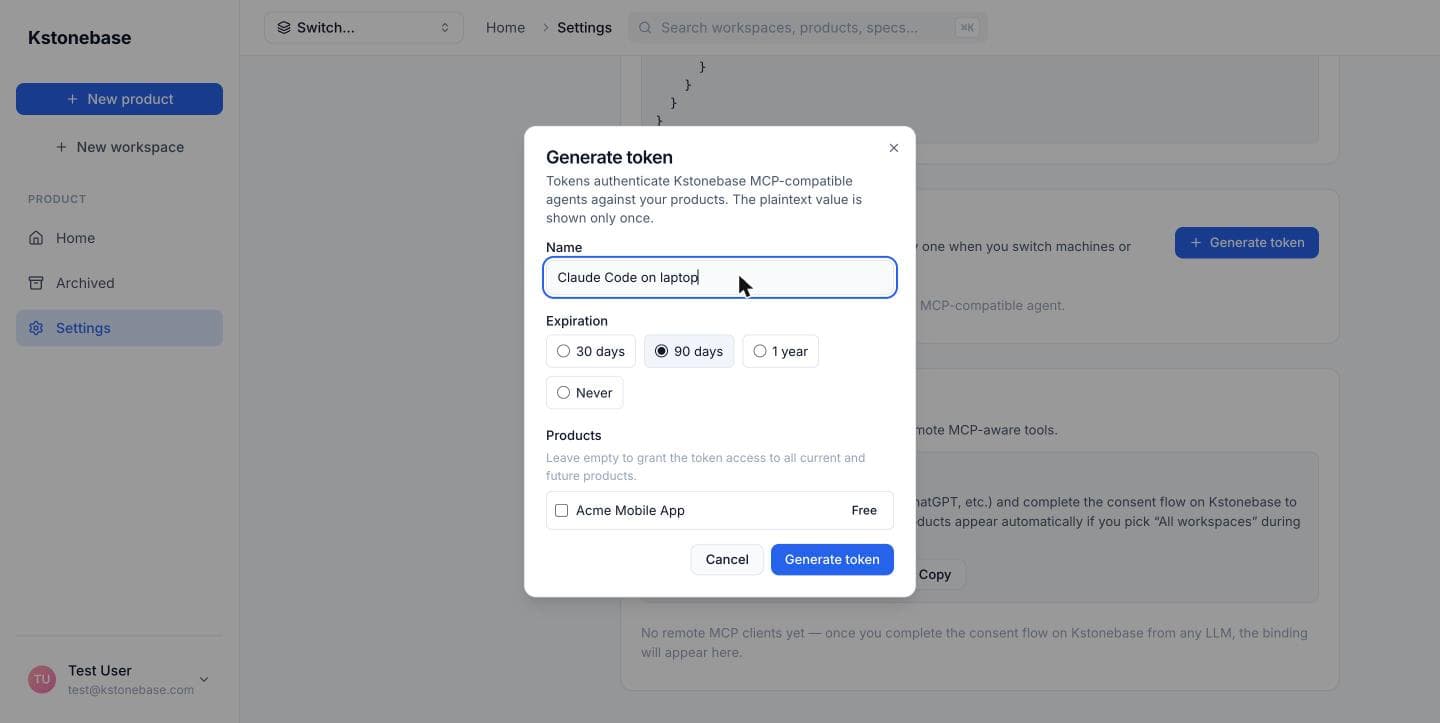
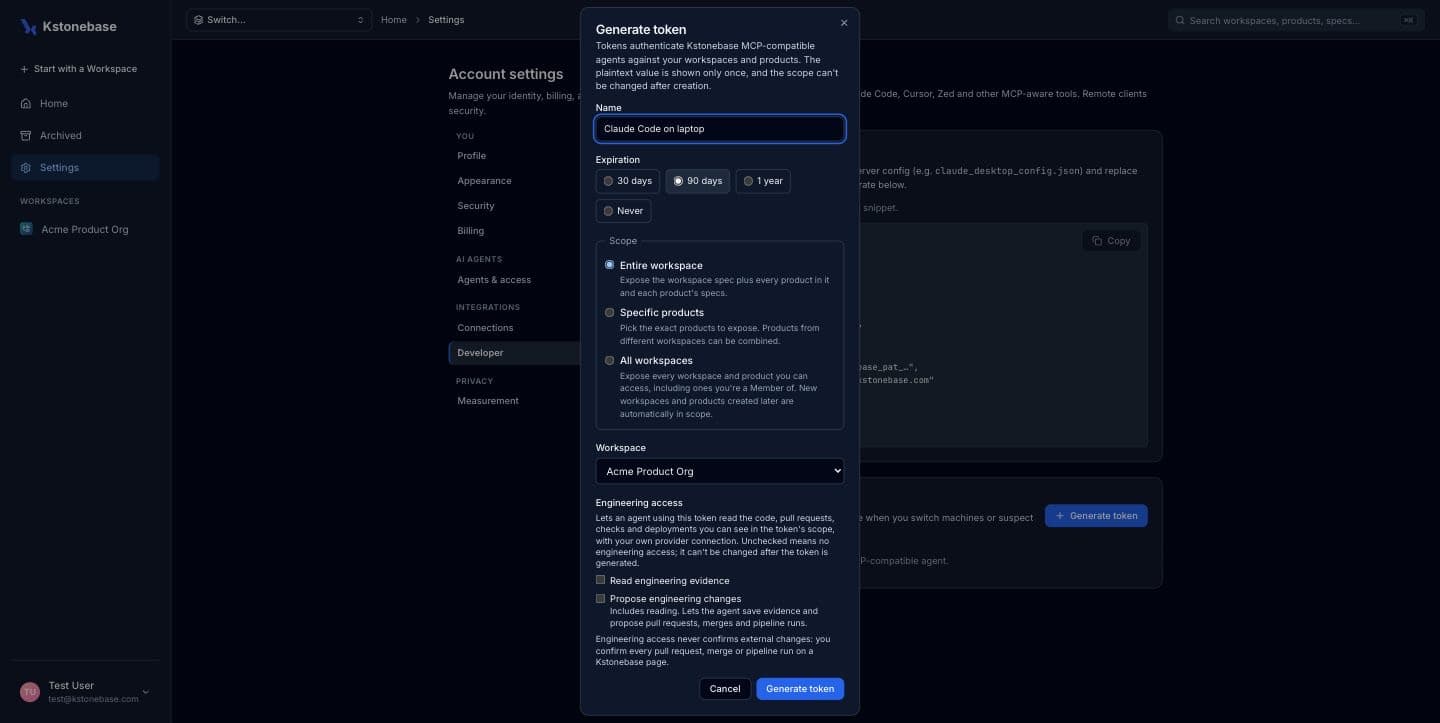
For a self-hosted MCP server or other clients, click Generate token, name it, set an expiry, and optionally scope it to specific products. Copy the value once — it authenticates the MCP server with the Kstonebase API.
Point the agent at a product
Drop the token into the MCP server config so the agent works in the product you choose. It can now list, read, and — with write scope — update specifications.
Verify the connection
Ask your agent to list your specifications. A successful response confirms it's reading from your live knowledge base.